Managing the Schedule
The Schedule page is where you add, reassign, and optimise jobs for your team. Here's how to make the most of it.
Adding a job
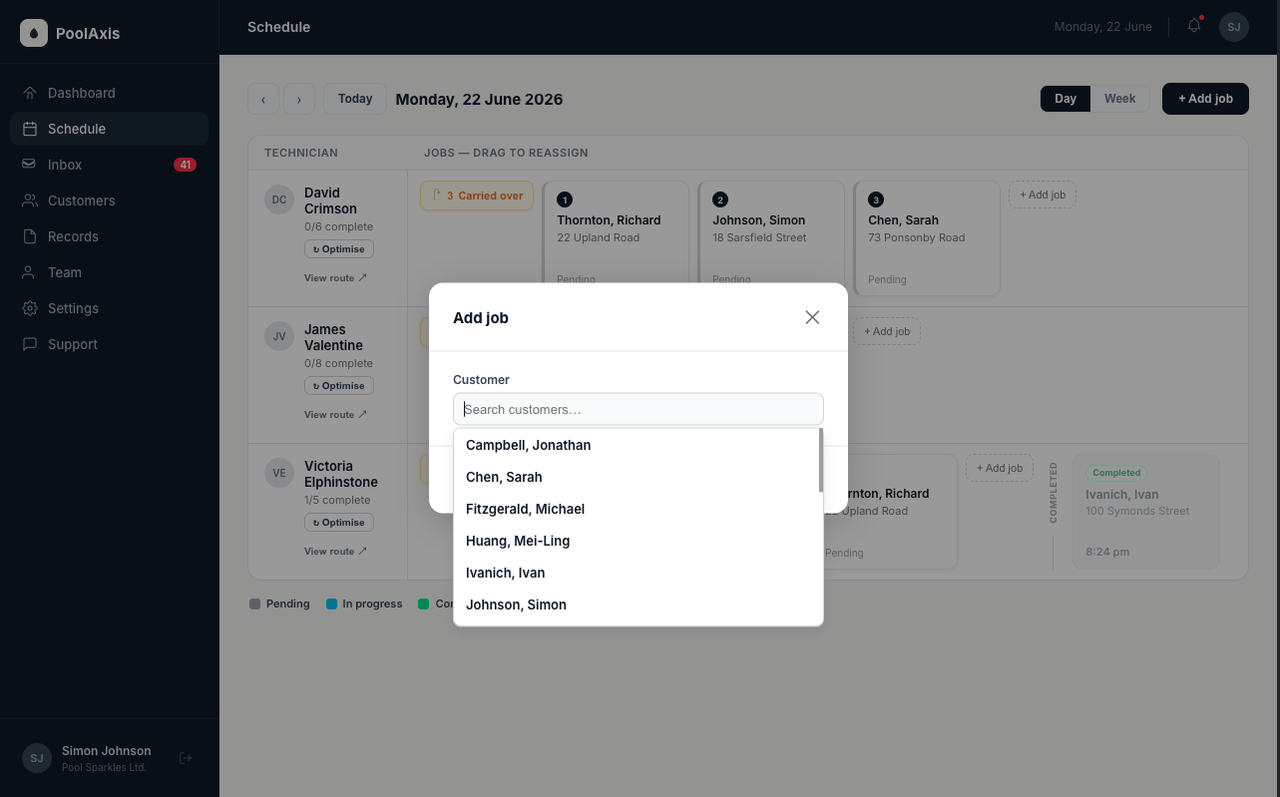
Click the + Add job button at the top-right of the Schedule page. In the drawer that opens:
- Select the customer and their pool.
- Choose the date.
- Assign a technician.
- Add any notes for the tech (optional).
- Click Save.
The job appears as a card in the technician's column for that day.
Reassigning a job
You can move job cards by dragging — the schedule supports three drag actions:
- Reorder within a lane — drag a job card up or down within the same technician's column to change the route order for that day. Route numbers (① ② ③) update in real time as you drag, and the new sequence is pushed to the technician's mobile app immediately.
- Reassign to another technician — drag a job card horizontally into a different technician's column on the same day. The assigned technician updates immediately and the change syncs to both technicians' mobile apps within seconds.
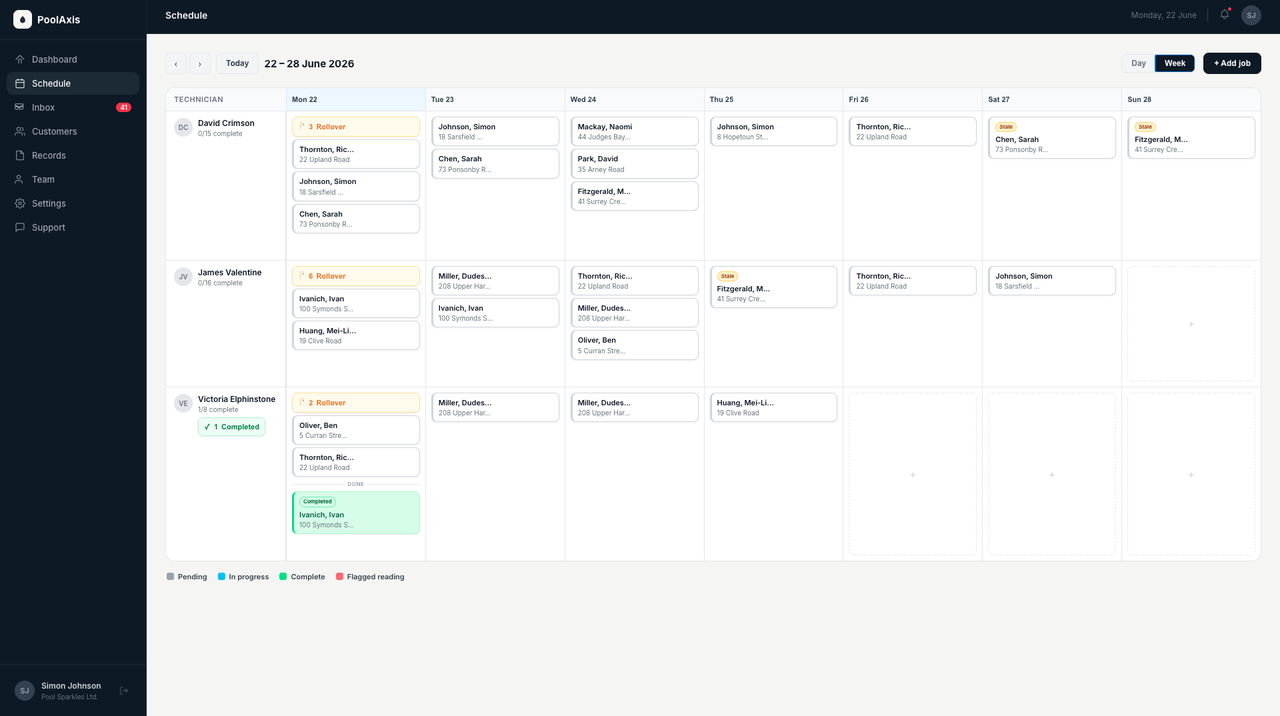
- Reschedule to another day — in week view, drag a job card to a different date column to move it to that day. You can also change the technician at the same time by dropping onto a different technician's row.
Completed and flagged jobs cannot be dragged.
Optimising a route
Click the Optimise route button above a technician's column. A modal will open asking for a start address. You have two options:
- Type an address — enter a depot, home, or any starting point.
- Use current location — if the technician has GPS location sharing enabled, click "Use [Name]'s current location" to start the route from where they are right now.
Click Optimise. PoolAxis reorders the job cards to give the most efficient driving sequence. The updated order is pushed to the technician's run sheet on their mobile app immediately.
Carried Over jobs
If a technician doesn't complete a job on the day it was scheduled, it carries over to the next working day. These jobs are marked with an amber Carried Over badge on the job card so they're easy to spot.
In week view, any day that has carried-over jobs shows the same amber badge on the day header. Click through to that day to see which jobs are outstanding.
Carried-over jobs appear at the top of the technician's run sheet in the mobile app under a dedicated "Carried Over" section, separate from that day's scheduled work.
Removing or rescheduling a job
Click a job card to open it. Use the options menu (three dots) to:
- Reschedule — pick a new date and optionally reassign to a different technician.
- Delete — remove the job entirely. This cannot be undone.