Settings
The Settings page (bottom of the left-hand sidebar) has seven tabs. This article covers the five you'll configure most often: Chemicals, Target ranges, Report branding, Schedule, and Mobile.
Chemicals — manage your stock inventory
The Chemicals tab shows your current chemical inventory. PoolAxis tracks stock levels automatically based on what your technicians record as used on each service visit.
- Add a chemical — tap the add button and enter the product name and opening stock quantity.
- Adjust stock — use the edit option on any chemical to correct the quantity (for example, after a delivery).
Stock levels appear in the Treatment tab during a service so technicians can see what they have available before they dose.
Target ranges — set your acceptable chemistry window
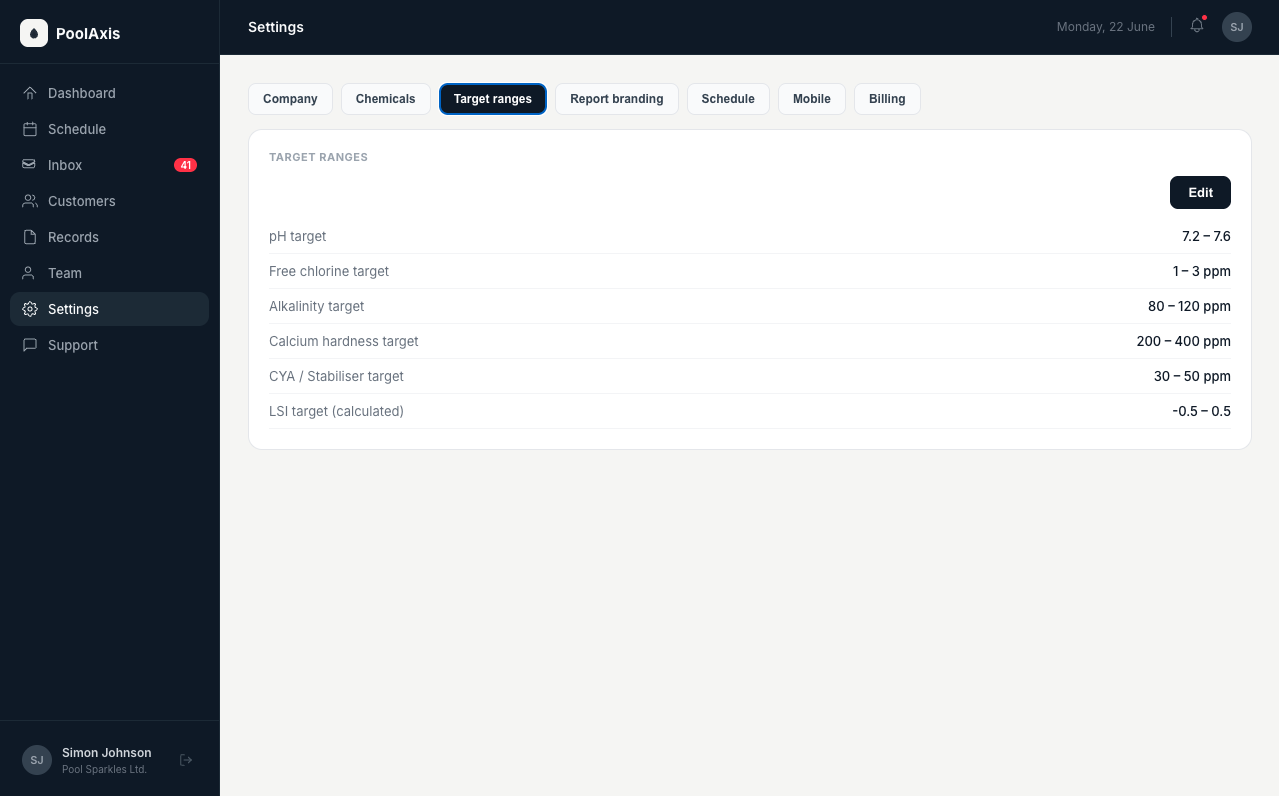
The Target ranges tab lets you define what counts as "in range" for each chemical parameter. PoolAxis flags readings that fall outside these ranges so they appear in your Inbox and on your Dashboard.
The parameters you can configure are:
- pH
- Free Chlorine
- Alkalinity
- Calcium
- CYA (stabiliser)
- LSI (Langelier Saturation Index)
Set a minimum and maximum for each one. Any service reading outside your defined range is flagged automatically.
Report branding — customise the service report your customers receive
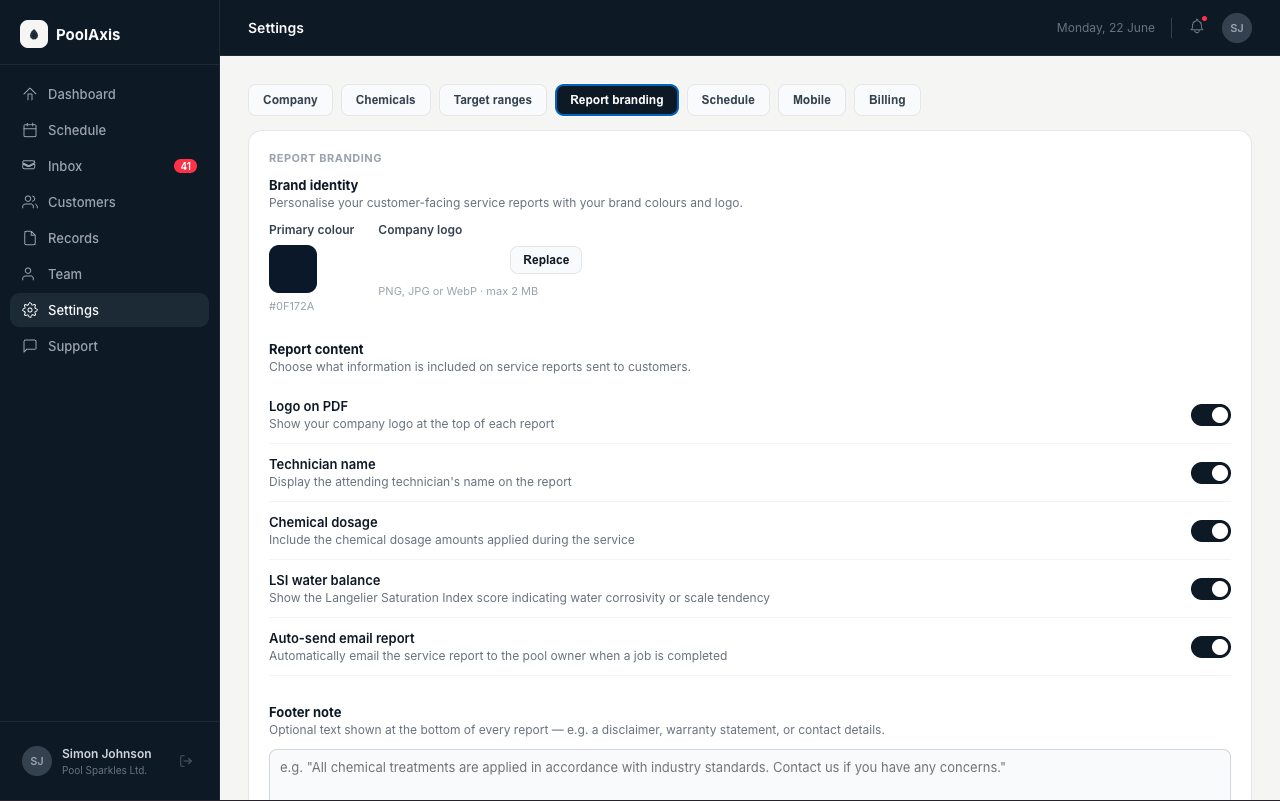
The Report branding tab controls how service reports look when they're sent to pool owners.
- Logo — upload your company logo. It appears at the top of the report.
- Colour — set a brand colour for report accents.
- Toggles — choose which sections appear on the report (for example, chemical readings, photos, or technician notes).
- Auto-send — when enabled, a service report is automatically emailed to the pool owner when a technician marks a job complete. Turn this off if you prefer to review reports before they go out.
Schedule — automation rules
The Schedule tab controls how PoolAxis handles scheduling edge cases automatically.
- Auto-reschedule — when enabled, a job that isn't completed on its scheduled day is automatically moved forward to the next available day on that customer's service plan.
- Weekends — set whether jobs can be auto-rescheduled to weekend days, or weekdays only.
- Cutoff time — set the time of day after which a job is considered overdue and triggers the auto-reschedule logic.
These settings apply across all jobs in your account.
Mobile — pairing the technician app
The Mobile tab is where you connect a new device to your PoolAxis account using a QR code.
- Open the Mobile tab in Settings.
- A QR code is displayed on screen.
- On the technician's phone, open PoolAxis and follow the pairing prompt, then point the camera at the QR code.
- The device is paired and the technician can sign in.
The QR code refreshes for security — if the technician can't scan in time, reload the page to generate a new one.