Getting Started with Poolside
Poolside is the app that connects you to your pool service history. You can see every visit, check your chemical readings, read service reports, and request extra visits — all from your phone.
What Poolside does
- Shows the full history of every service visit on your pool.
- Displays chemical readings from each visit with colour-coded indicators so you can see at a glance how your water is tracking.
- Delivers service reports directly to your phone after each visit.
- Lets you request an extra service visit if something comes up between scheduled services.
How to get access
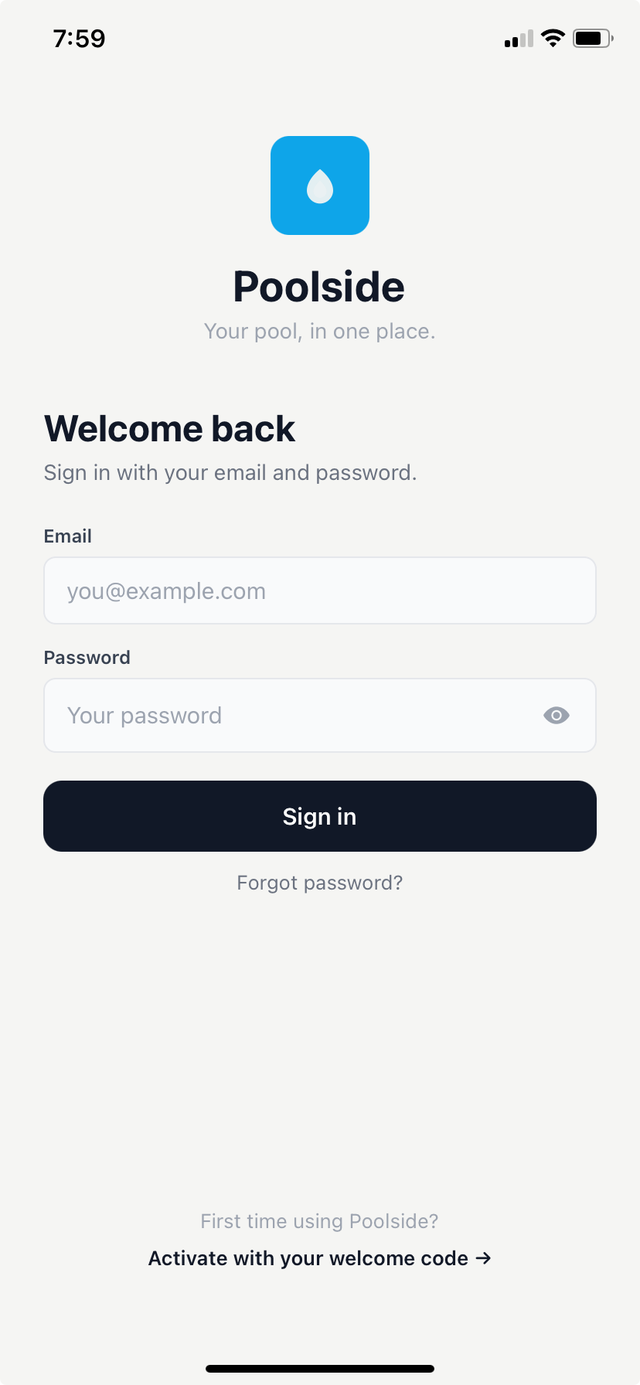
Poolside is invite-only — your pool company sets you up. When they add you to their system, they'll send you an invite email with a unique code. You'll need that code to link your account to your pool.
If you haven't received an invite, contact your pool service company and ask them to send you a Poolside invite.
Downloading the app
Poolside is available on:
- iPhone — search "Poolside" in the App Store.
- Android — search "Poolside" in Google Play.
Setting up your account
See Accepting Your Invite for the step-by-step setup process.
The main tabs
Once you're in, Poolside has four main tabs:
- Home — a live summary of your pool's current condition and recent visits (see below).
- History — a full list of all past service visits.
- Request — submit a request for an extra service visit.
- Profile — update your contact details and notification preferences.
The Home screen
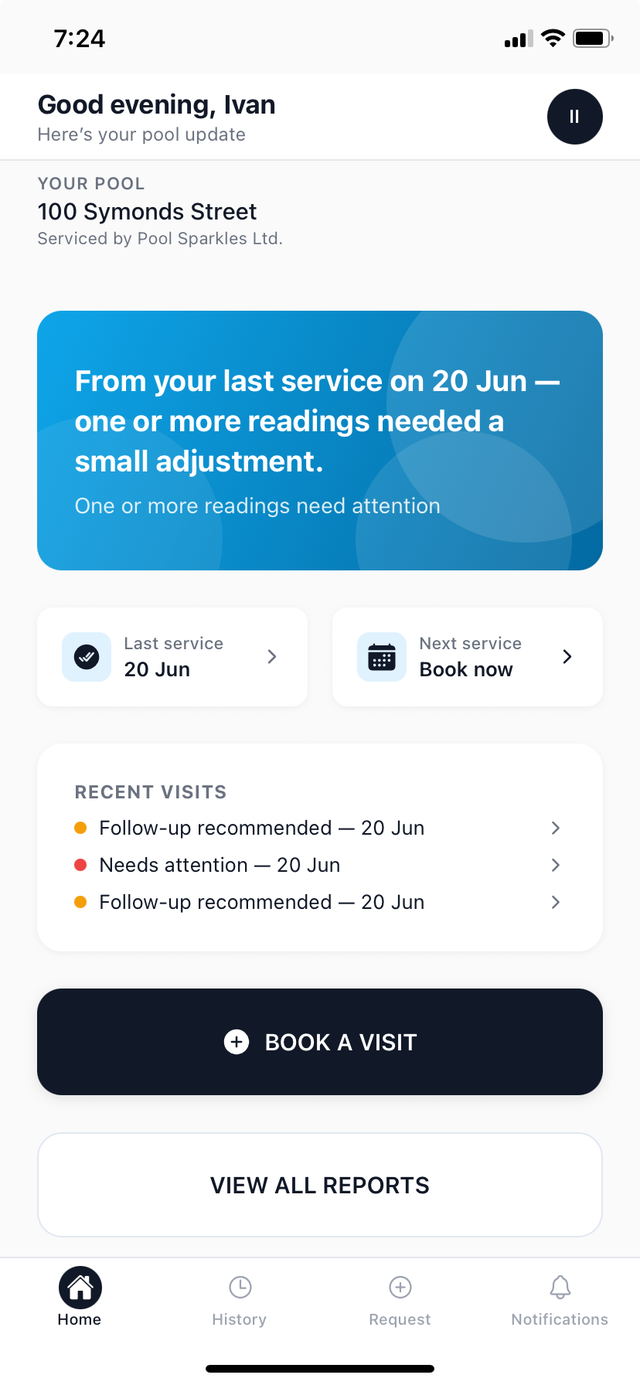
The Home screen gives you a personalised overview of your pool at a glance:
- Personalised greeting — "Good morning, [your name]" with a "Here's your pool update" subheading.
- Water condition card — a large card showing your pool's overall health. It shows green when the water is in good condition, amber when follow-up is recommended, and red when attention is needed.
- Quick-stat cards — two cards side by side showing the date of your Last service and your Next service.
- Recent visits list — the last few service visits, each with a colour-coded dot: green (all readings in range), amber (borderline readings), red (readings out of range), or grey (no readings recorded). Tap any row to open the full service report.
- Request a Visit button — a prominent button at the bottom of the screen. Tap it to send a request for an extra service visit to your pool company.