Setting up your pool and spa
When you first log in to Poolside you'll land on the pool setup screen. This is where you add the details your service technician needs — pool volume, surface area, sanitiser type, and access information.
You can return to this screen any time via Home → your avatar → Profile → Pool details.
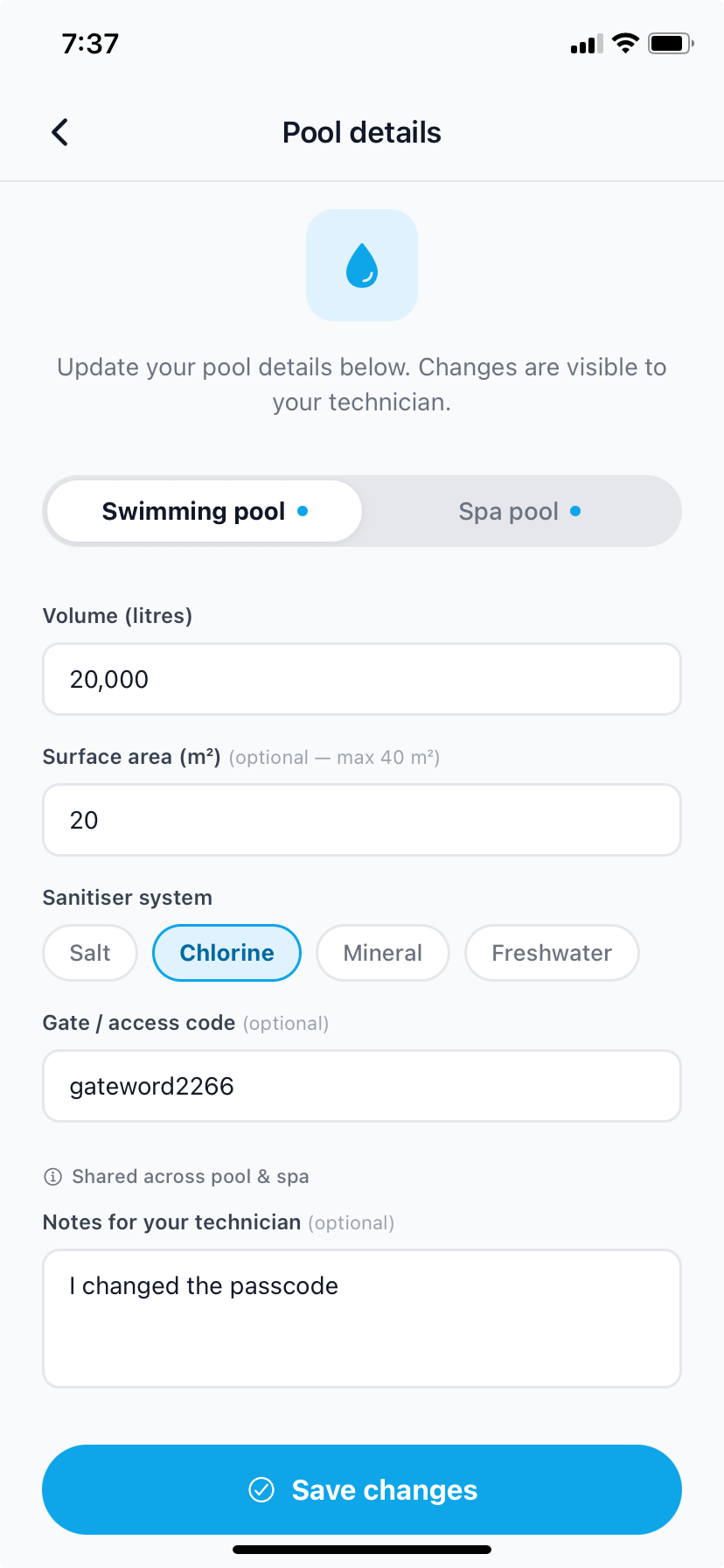
The Pool tab
Fill in the details for your main pool:
- Volume — the total water volume in litres. You'll find this on your pool builder's paperwork, or ask your technician — it doesn't need to be exact, but the closer the better.
- Surface area — the approximate water surface area in square metres.
- Sanitiser — the primary sanitiser your pool uses (for example, chlorine, salt, or mineral).
- Gate code — if your pool area has a keyed or coded gate, add the code here so your technician can access it without needing to call you.
- Notes — anything else your tech should know: dog in the yard on certain days, pump location, tricky gate latch, and so on.
The Spa tab
If you also have a spa, tap the Spa tab and fill in the same fields. Your spa is managed as a separate body of water with its own readings and treatment history.
If you don't have a spa, leave the Spa tab blank.
Saving
When you're happy with the details, tap Save & Continue. You'll move to your home screen.
Your pool volume and surface area are used to calculate correct chemical doses. The more accurate they are, the more precise your technician's treatment recommendations will be.
Updating details later
If your gate code changes, you switch sanitiser systems, or anything else is different, update your pool details via Home → your avatar → Profile → Pool details and tap Save.