Service Reports
Every time a technician completes a job in the PoolAxis mobile app, a service report is generated automatically. You can review, share, and follow up on reports from the Records page.
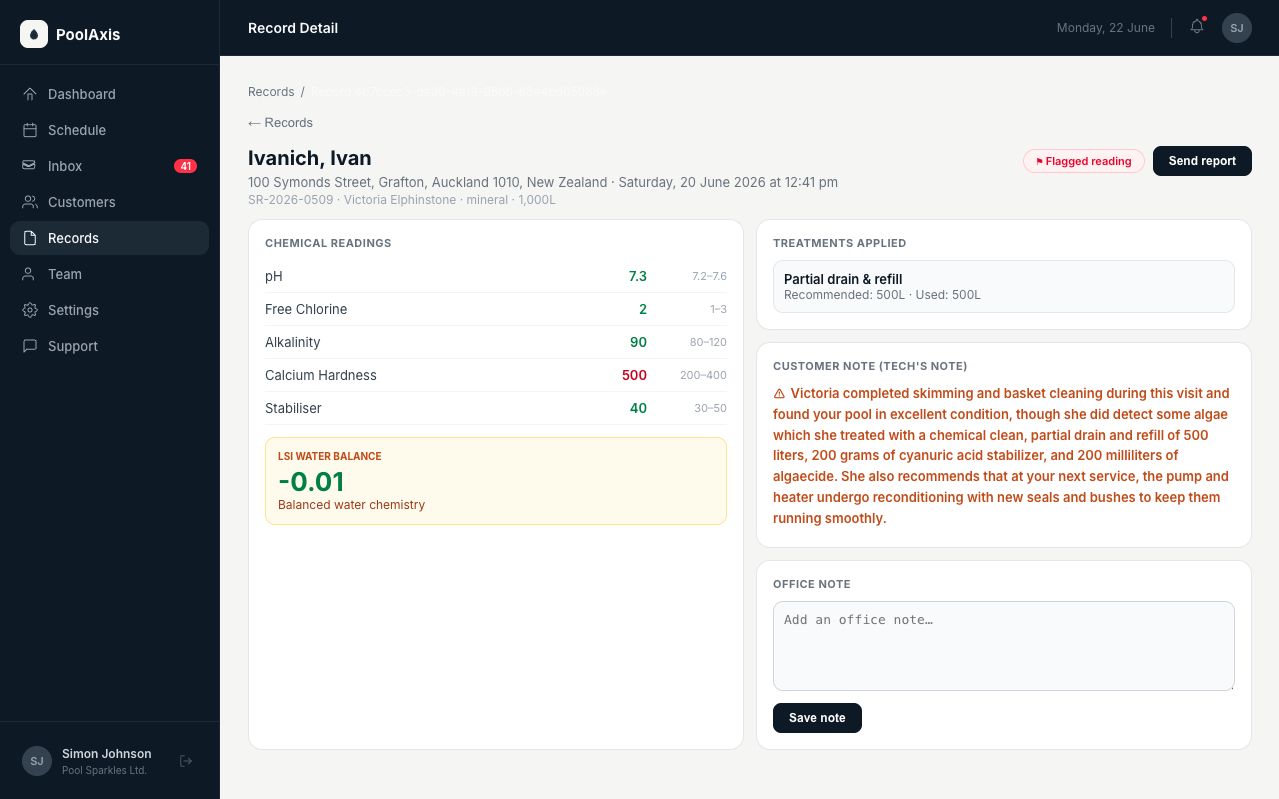
What's in a service report
Each report includes:
- Date and time the job was completed.
- Technician name — who performed the service.
- Pool details — customer name, address, and pool type.
- Chemical readings — all values entered by the technician, each colour-coded green (in range), amber (borderline), or red (out of range).
- Technician note (customer-visible) — any note the technician wrote that the pool owner can see in the Poolside app.
Technicians can also add an internal office note, which only your team can see and is never included in the report sent to the pool owner.
The technician's note is polished by AI
When a technician writes a customer-visible note on a job, PoolAxis automatically rewrites it into one or two natural, friendly sentences before it appears on the report. Shorthand like "skimmed, emptied baskets, 200ml algaecide, rec pump service" goes out to the pool owner as polished prose — written in your technician's name, with Australian and New Zealand spelling throughout.
- Only the customer-visible note is rewritten. Internal office notes are never altered, and never leave your team.
- The facts stay the same — the rewrite improves the wording, not the content.
- If the rewrite can't run for any reason, the report simply uses the technician's original note as written.
The polished note is what the pool owner sees everywhere — on the emailed report and in the Poolside app's History tab.
Flagged readings
If any reading is out of the normal range, the report is marked as flagged. Flagged readings are shown in amber or red on the report, making it easy to spot which values need attention. You'll also see a flag indicator on the job card in the schedule and on the Records list.
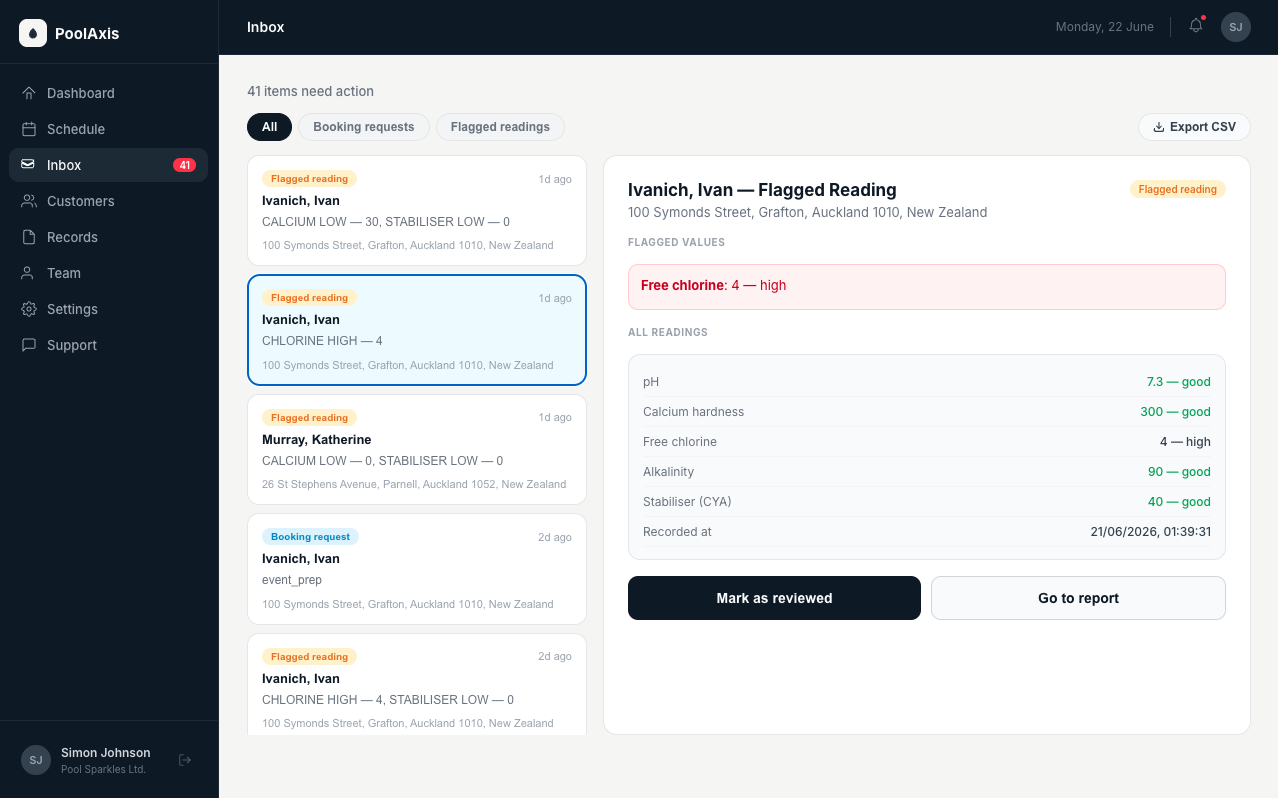
Finding reports — the Records page
Go to Records in the sidebar to see all completed service reports. You can filter by:
- Date range
- Technician
- Customer or pool
- Flagged only
Click any report to open the full details.
Emailing a report to the pool owner
From an open report, click Email to owner. PoolAxis sends a formatted copy of the report to the email address on the customer record. If the customer is already a Poolside user, they can also access all their reports directly in the app under the History tab.