Recording a Service
When you complete a job, PoolAxis captures everything through the job form — readings, notes, and photos. This creates the service report that goes to your admin and the pool owner.
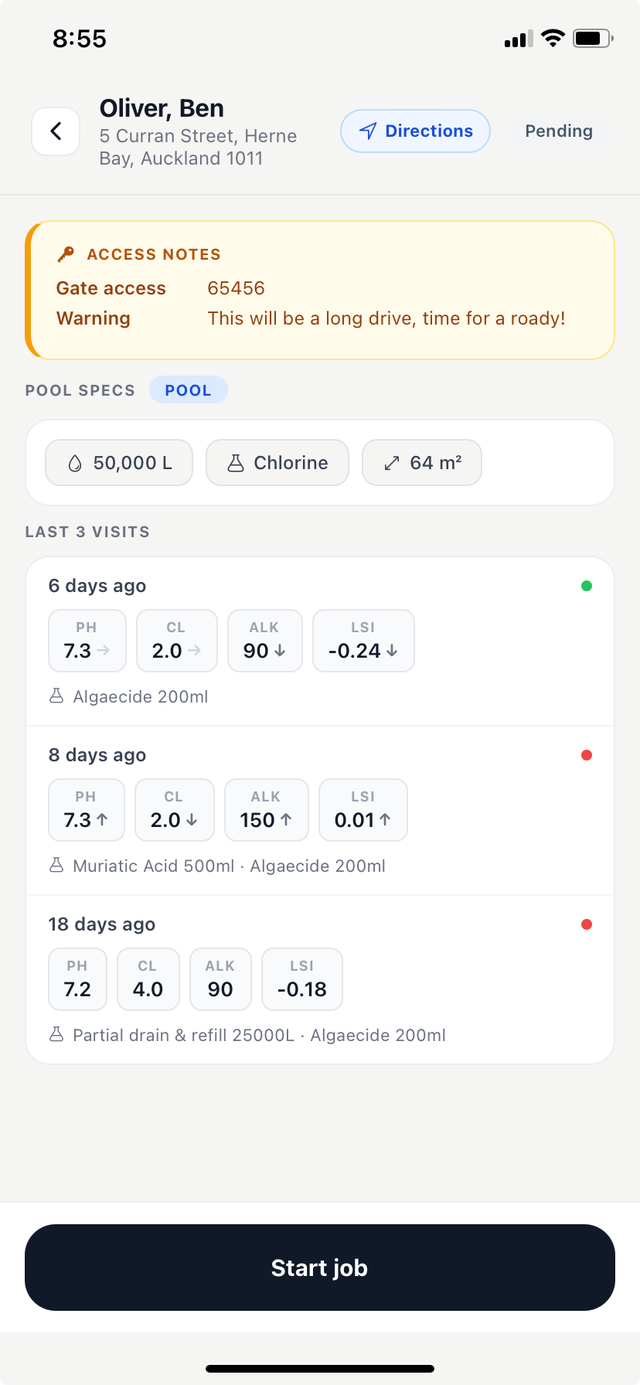
Opening the job
From your run sheet or the Schedule tab, tap the job card. Tap Start job to begin — this records your start time and lets your admin know you're on site.
The job tabs
Once you tap Start job, the job form opens with six tabs. Work through them in order:
Readings
Enter the chemical readings you've measured. Each reading shows the normal range next to the field. After you enter a value, the field turns green (in range), amber (borderline), or red (out of range). The LSI water balance score and a trend alert card update in real time as you type — see Chemical Readings for detail on each reading.
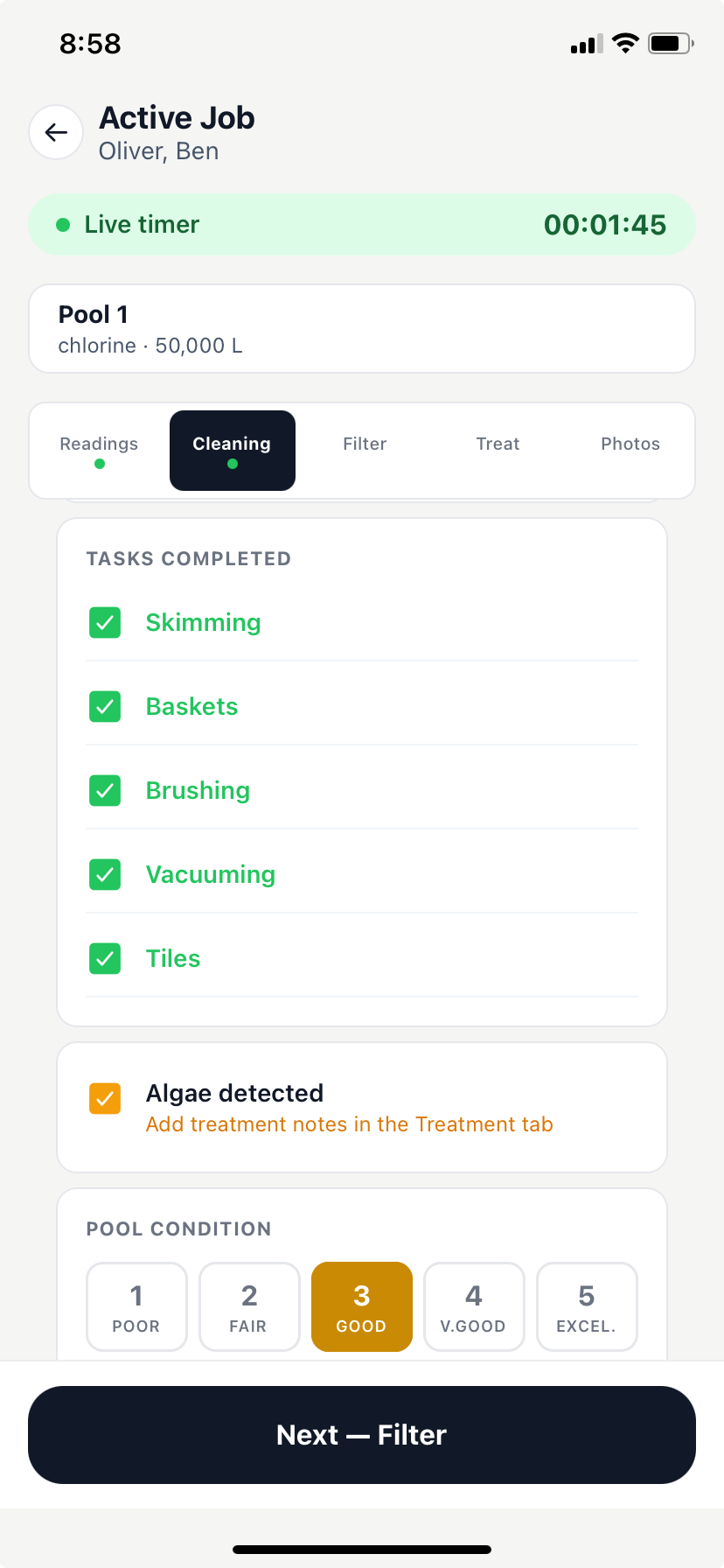
Cleaning
Record the cleaning tasks you completed — skimming, brushing, vacuuming, backwashing, and so on. Rate the pool condition and note if algae was detected. If you had to skip cleaning for any reason, toggle Cleaning skipped.
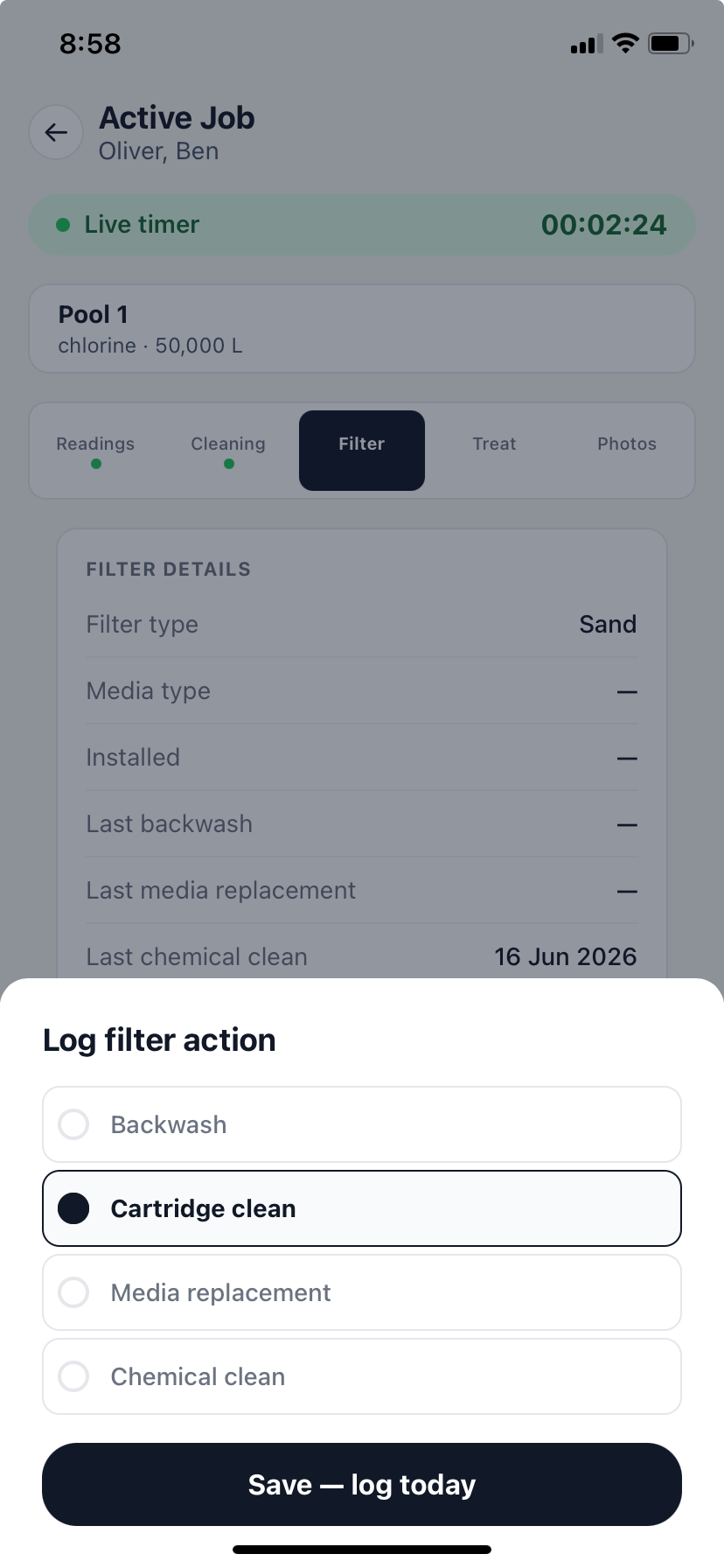
Filter
Record the filter condition and any maintenance performed. Note the filter type, current pressure reading if applicable, and any action taken.
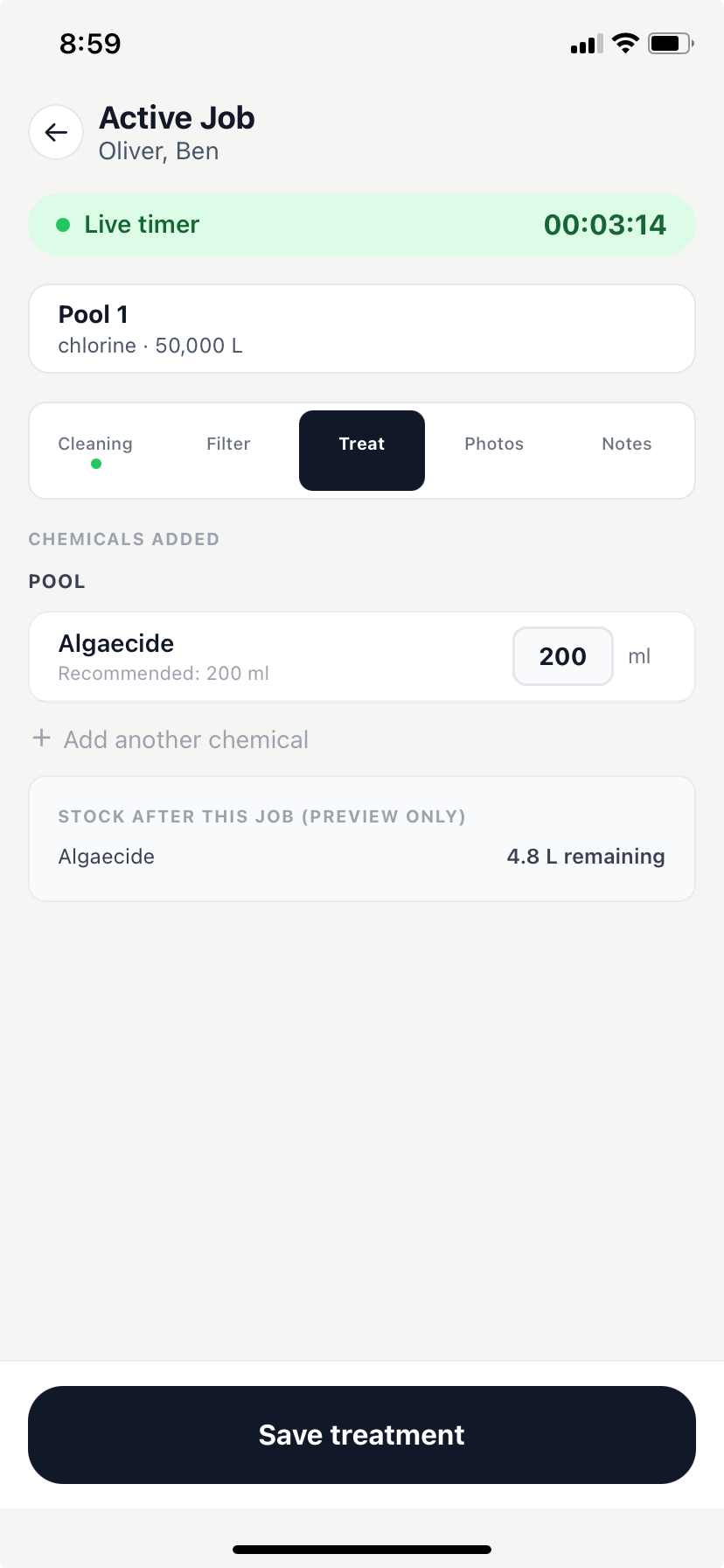
Treatment
Review the recommended treatment calculated from your readings and record what you actually applied — product name and amount. If you added chemicals not in the recommended list, you can add them manually here.
Photos
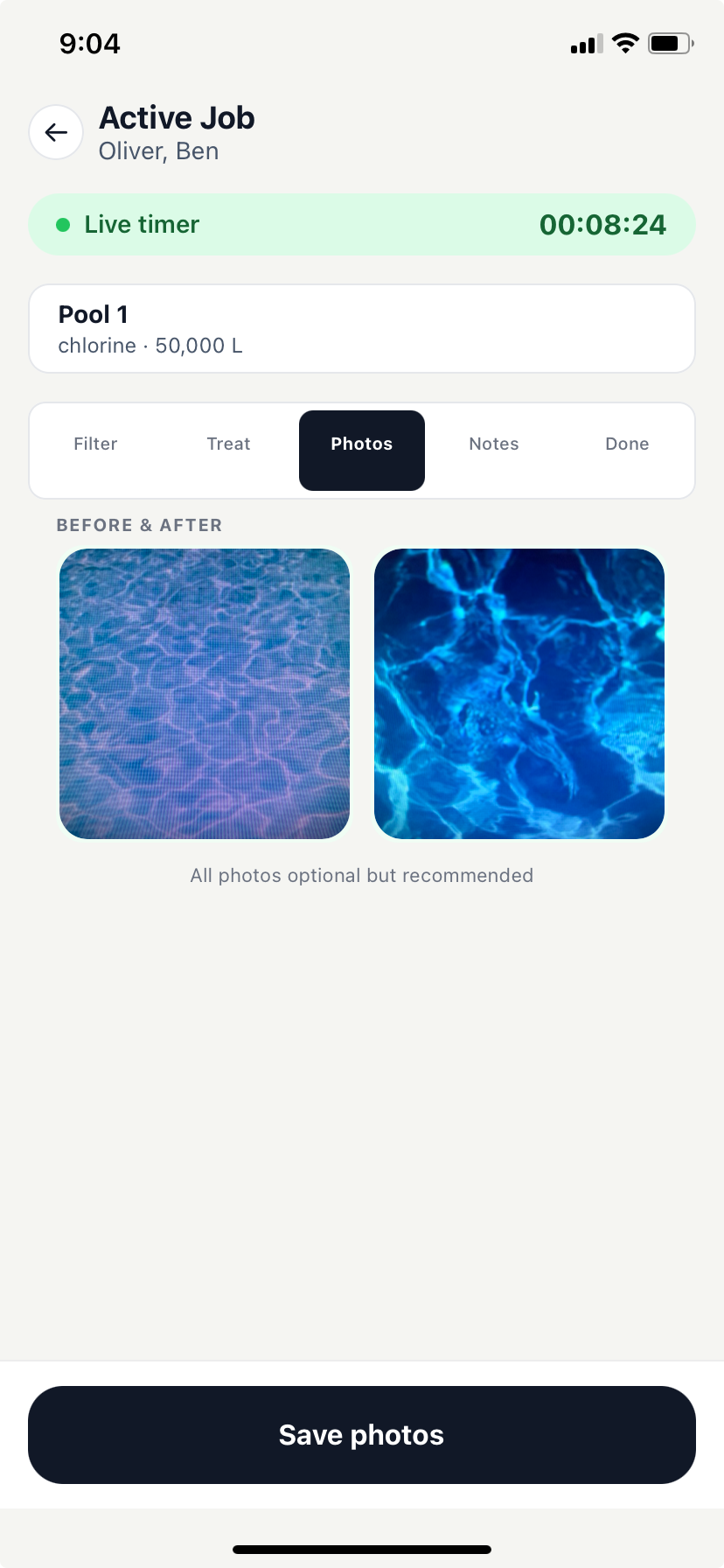
Tap the camera icon to take a photo, or the gallery icon to attach one from your camera roll. Add multiple photos — before/after shots, damaged equipment, or anything worth documenting. Photos are attached to the service record.
Notes
There are two note fields:
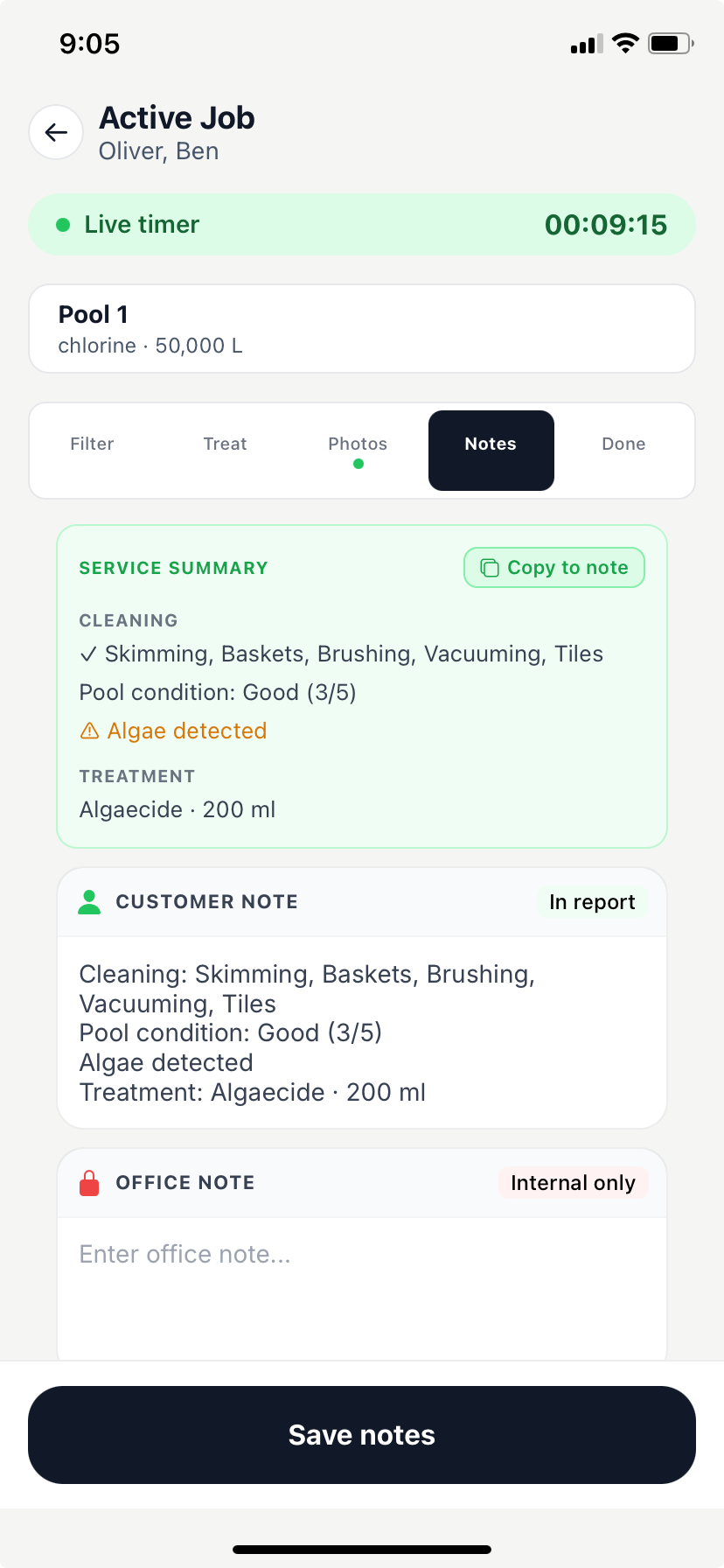
- Customer note — included in the service report sent to the pool owner. Keep it professional and informative.
- Office note — internal only, never shown to the customer. Use it for anything your admin needs to know: equipment issues, access problems, anything that needs follow-up.
Live alerts and water balance
While you are in the Readings tab, the app analyses your entries in real time and surfaces two additional cards to help you act on what you are measuring.
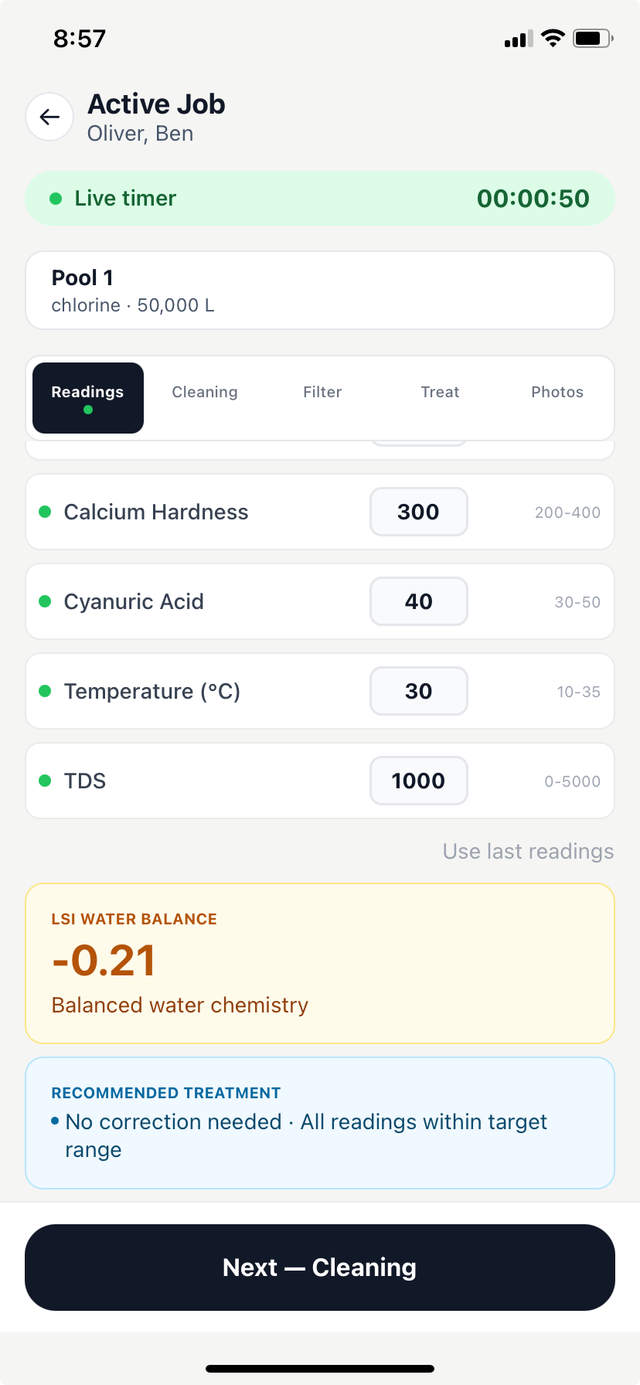
- Trend alert card — a yellow or orange ⚠ card appears automatically if readings are moving in a dangerous direction (for example, pH high and still rising, or chlorine declining). Each concern is listed with plain-language text and a directional arrow. Review and address these before completing the job.
- LSI Water Balance — the app calculates the Langelier Saturation Index (LSI) automatically from your readings. The score is shown with a plain-language description:
- Below −1.0 — severely corrosive
- −1.0 to −0.3 — slightly corrosive
- −0.3 to +0.3 — balanced
- +0.3 to +1.0 — scale-forming
- Above +1.0 — highly scale-forming
- Recommended Treatment — below the LSI card, a blue card shows a bulleted list of specific actions and quantities calculated from your readings (for example, "Add 50 kg Alkalinity Builder" or "Drain 5,000 L to reduce scaling tendency"). Review these and apply the treatment as needed, then record what you actually added in the Treatment tab.
Completing the job
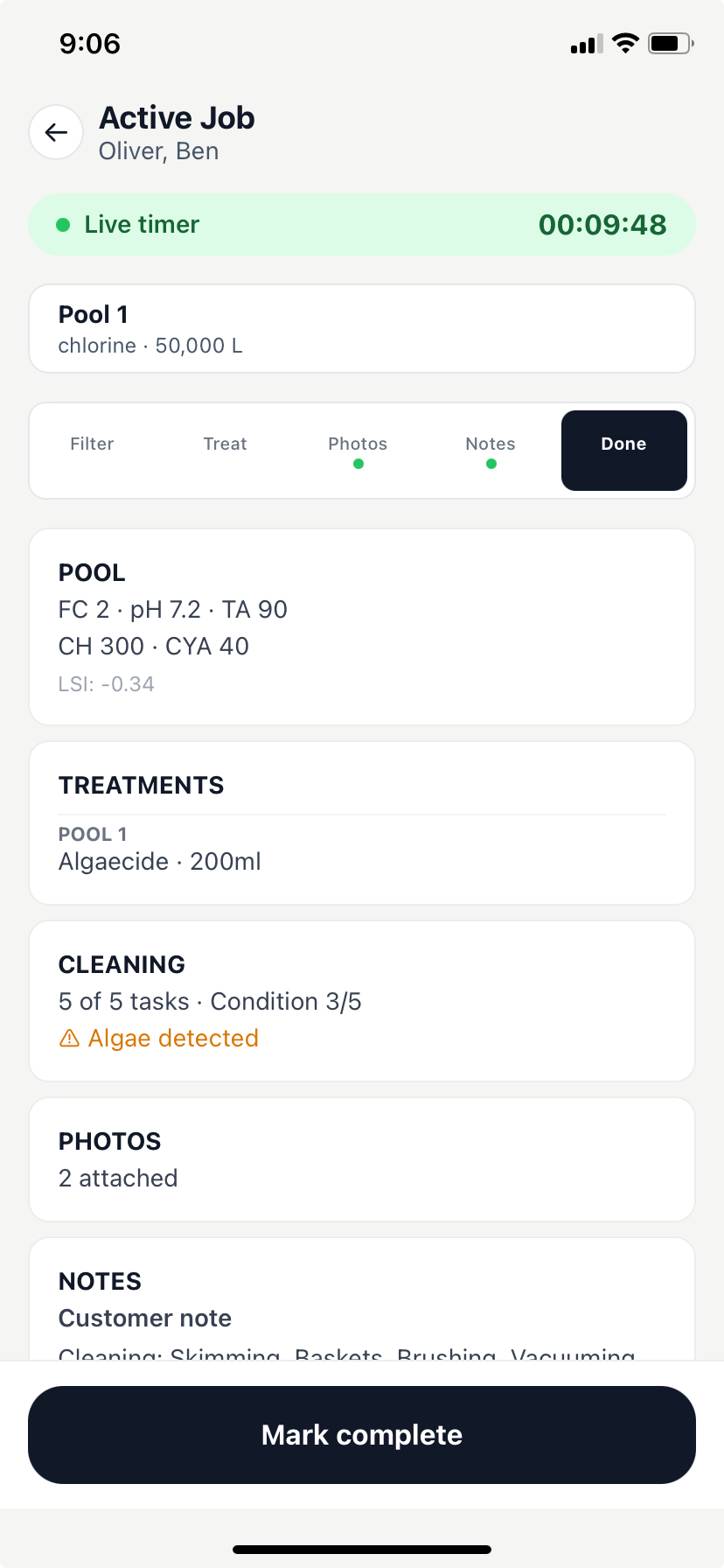
Once you've filled in the readings and notes, tap Complete job at the bottom of the screen. You'll be asked to confirm. The service report is generated immediately and:
- Appears in your admin's Records page.
- Becomes visible to the pool owner in the Poolside app (if they're set up).
- Marks the job as complete on the schedule.
Once a job is marked complete, you can't edit the report from the app. If you need to make a correction, contact your admin.